Launch your ads: products, daily budget and ACOS target
Choose your products, set your daily budget and your ACOS target, then let Autopilot launch your campaigns.
Once your Amazon account is connected, three settings are all Autopilot needs: which products to advertise, your daily budget and your ACOS target.
Your dashboard at a glance
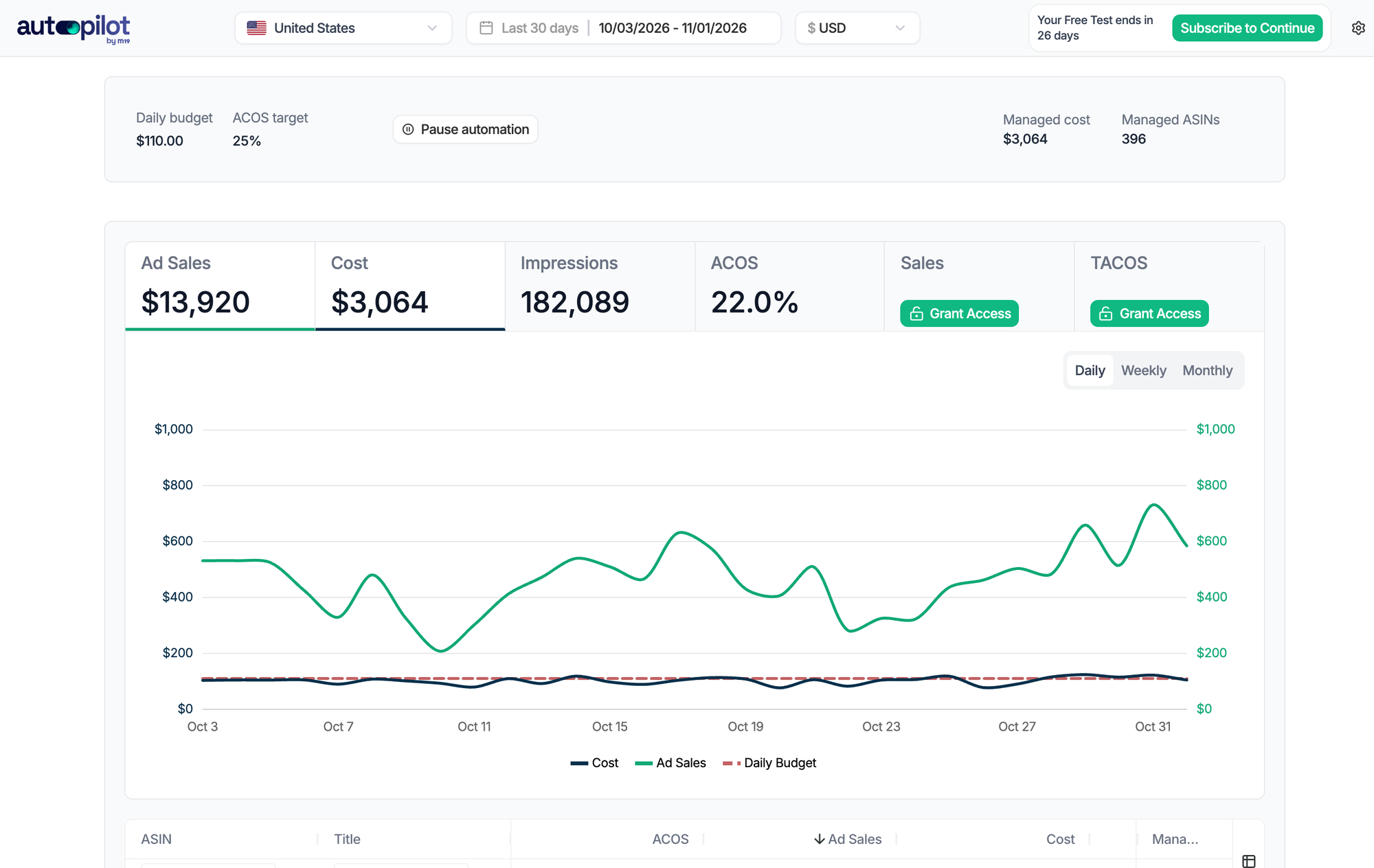
The Autopilot dashboard (illustrative data)
Top bar: marketplace selector, date range and currency. On the right, your free trial counter and the Subscribe to Continue button.
Settings bar: your Daily budget and ACOS target, the Pause automation button, the Managed cost (what Autopilot spent) and the number of Managed ASINs.
Results: Ad Sales, Cost, Impressions and ACOS, with a daily chart of sales, cost and budget. Sales and TACOS appear once you have granted organic data access.
Product table (below the chart): ACOS, ad sales and cost for each product.
Step 1: choose your products
Click the Managed ASINs count to open the Manage ASINs window:
Managed ASINs (left): products advertised by Autopilot.
Select products, click Remove or Add to move them between the two lists, then click Save.
The Manage ASINs window
Good to know:
Autopilot can manage up to 1,000 products.
A product can be advertised only if it has an active listing, a product image, the Buy Box and stock. Autopilot checks this automatically and skips products that are not eligible.
Your catalog syncs automatically: new products appear within 24 hours.
Vendor accounts: if some ASINs are missing, add them with the Add ASINs button.
Step 2: set your daily budget
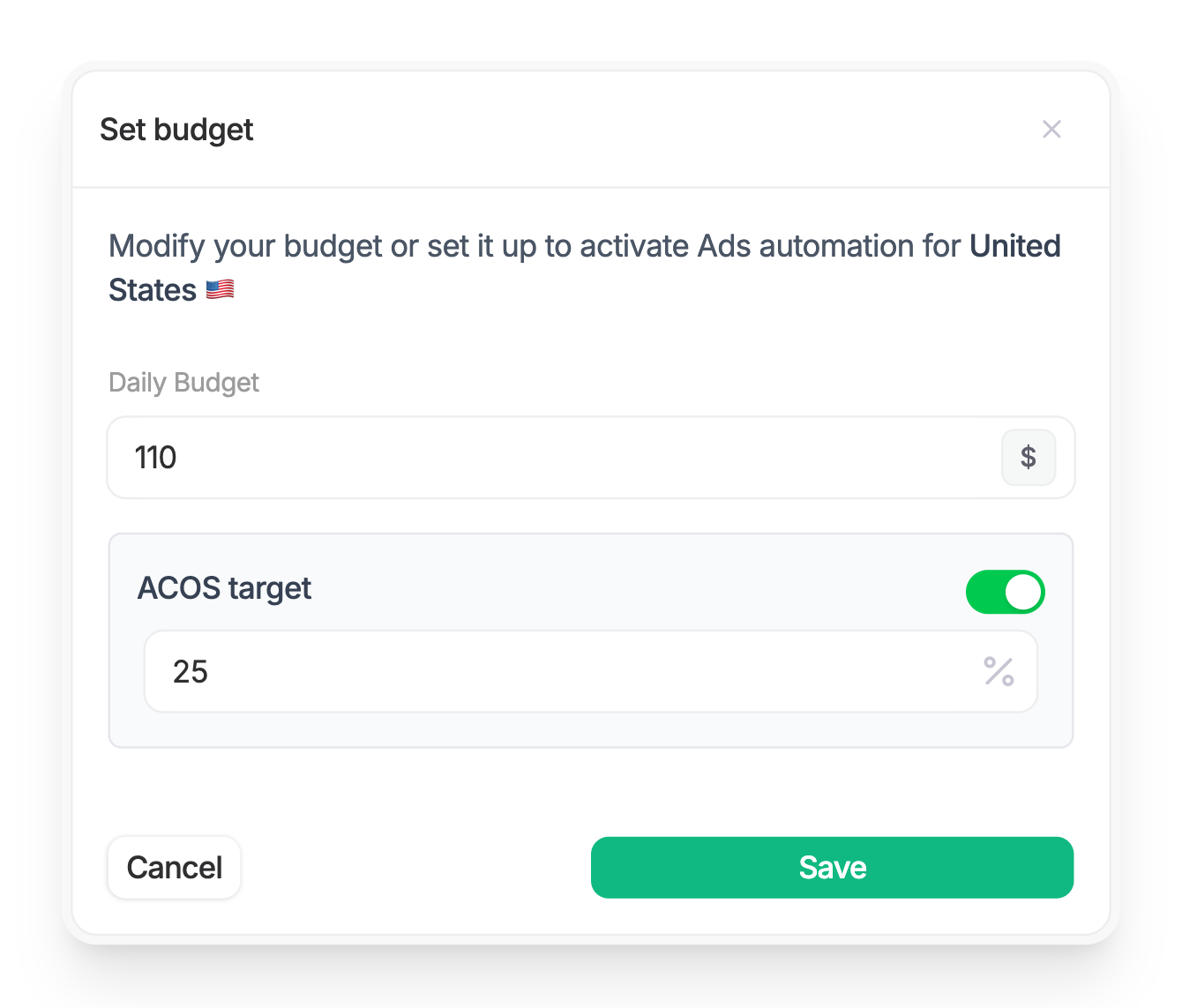
Click the Daily budget on the dashboard to open the Set budget window.
Think of the daily budget as a monthly envelope: daily budget × days in the month. For example, $50 a day is about $1,500 for a 30-day month. Autopilot spends more on strong days and less on slow ones, and your average daily spend over the month never goes above your daily budget.
Step 3: set your ACOS target
In the same window, turn on ACOS target and enter your goal.
Start close to your actual ACOS over the last 30 days.
A lower target is more efficient. A higher target leaves room for more growth.
Autopilot uses one ACOS target for all your products.
Click Save: Autopilot takes it from there.
The Set budget window, with the daily budget and the ACOS target
What happens next
Within 24 hours, Autopilot creates your Sponsored Products campaigns. Their names contain "m19 autopilot" and they are grouped in a dedicated portfolio in the Amazon Ads console.
Autopilot runs Auto, Phrase and Exact match campaigns: it discovers new search terms, then moves the ones that convert into precise Exact campaigns. Negative keywords are handled automatically.
Bids and budgets are updated once a day, around 6 a.m. local time. Changes you make in Autopilot are applied at the next update.
Your dashboard shows data up to yesterday: Amazon reports sales with a 24 to 48 hour delay, so the last couple of days can still move.
Right after launch
Three things to do on day one:
Pause your own Sponsored Products campaigns that promote the same ASINs as Autopilot, or use Resolve conflicts on the dashboard (see "Common situations and what to do").
Check the daily budget cap of your Amazon Ads account (Amazon Ads > Settings > Account settings). If it is lower than your Autopilot budget, Amazon stops all your ads once the cap is reached.
Make all changes in Autopilot, never directly on Autopilot's campaigns in the Amazon Ads console: those edits are overwritten at the next daily update.
Next: what to expect in your first month (see "Your first month: the learning phase").
Need help?
Chat with our AI assistant at the bottom right of the Autopilot app, or email us at autopilot.support@m19.com.