.png)
Client Access
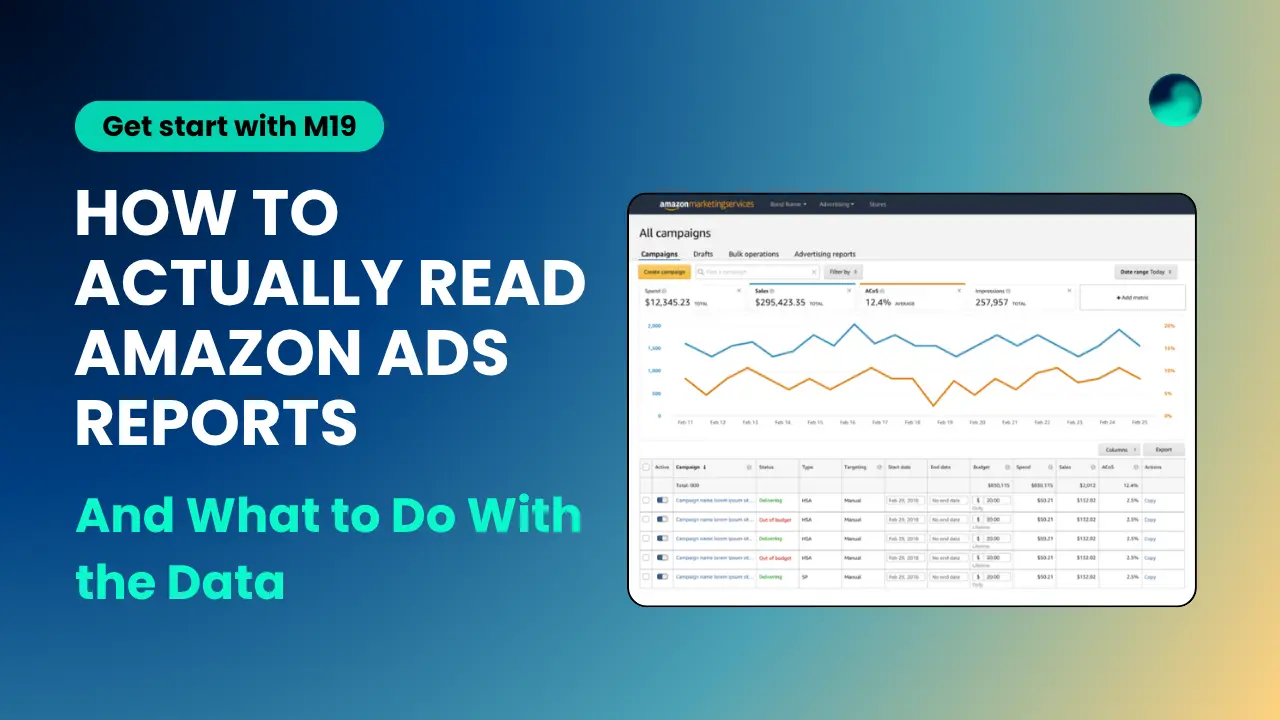
Running Amazon Ads without analyzing and tracking your reports is like driving with your eyes closed. You might move forward, but you have no idea where you are going or what you are about to hit. Amazon gives you a mountain of data every single day, and most sellers either ignore it or open it once, feel overwhelmed, and close it right back.
This guide is here to change that. We will walk you through the key Amazon Ads reports, what each one is actually telling you, and how to turn that information into decisions that improve your campaigns.
Here is the truth: Amazon reports are not difficult because the data is complex. They are difficult because no one tells you which numbers actually matter and what to do when they look off.
Most sellers focus on one or two metrics, miss the bigger picture, and end up either overspending or underspending. Getting comfortable with your reports is one of the most important habits you can build as an Amazon advertiser.
Amazon gives you a set of reports that each answer a different question about your campaigns. Analyzing them will give you a clear picture of what is working, what is draining your budget, and where your biggest opportunities are sitting untouched.
Here are the five core reports you need to focus on for Amazon Sponsored Products Ads:
This is the most useful report Amazon gives you, full stop.
The Search Term Report shows you every single search query a shopper typed into Amazon before clicking on your ad. This tells you exactly how real customers find your product, which is information you cannot get anywhere else. Reading the Search Term Report regularly is what separates sellers who improve over time from those who just keep spending the same budget with the same results.
When you open this report, look for three things:
This report gives you a top-level view of how each of your campaigns is performing. Think of it as your dashboard. It shows the most important PPC metrics impressions, clicks, spend, sales, and your ACoS (Advertising Cost of Sale).
ACoS is the metric most sellers watch the closest, and for good reason. It tells you what percentage of your ad-generated revenue went back into advertising. If you spent $20 on ads and made $100 in sales from those ads, your ACoS is 20%.
A lower ACoS is not always better, though. If you are launching a new product and trying to build visibility, a higher ACoS makes sense because you are investing in exposure. If you are running a mature product with strong organic rankings, you want that number tighter. The key is knowing what your target ACoS should be for each product and campaign at a given stage.
What to look for in this report:
The Advertised Product Report shifts the focus from search terms to your actual products. Instead of showing you what shoppers searched, it shows you how each individual product in your catalog is performing across your campaigns.
This report is especially useful if you are advertising multiple products at the same time. It tells you which ASINs are driving sales, which ones are spending budget without converting, and which ones might need more support or a completely different strategy.
When you open this report, look for three things:
The Placement Report shows you where your ads actually appeared, whether that is the top of search results, the middle of the page, or on product detail pages. This matters because the same bid can perform very differently depending on where your ad ends up showing. Top of search tends to drive higher click-through rates and better conversions, but it comes at a higher cost. Product detail pages, on the other hand, can be a cost-efficient option for products where shoppers are already deep in the buying process.
What to look for in this report:
The Targeting Report shows you how individual keywords and product targets are performing inside your manual campaigns. This is where you find your best keywords and your worst ones, and it is the report that gives you the most direct control over where your budget goes. Understanding how targeting works, both automatic and manual, gives you the right context to act on what this report tells you.
What to look for in this report:
Most sellers open an Amazon ad report, see a wall of data, and start scrolling for something that looks off. That is the wrong approach. Before you dive into any report, go in with a specific question, set a date range of at least 14 to 30 days, and sort by spend or clicks first so the most important rows surface immediately. Focus on trends over time rather than reacting to single data points, and whenever you spot something to fix, change one thing at a time so you can actually tell what worked.
Here is how to read any Amazon Ads report effectively.
Before you open a report, decide what you are trying to find out. Are you looking for wasted spend? Are you trying to find your best-performing keywords? Are you checking whether a recent bid change made a difference? Going in with a specific question gives your review a purpose. Without one, you end up scrolling through rows of numbers, picking out things that look vaguely wrong, and closing the tab without a clear next step. A focused question leads to a focused action.
A single day of data tells you almost nothing. Start with the last 14 to 30 days to give the numbers enough weight to be reliable. Amazon attributes sales with a delay of up to 14 days for some ad types, which means a click that happened last week might only show a conversion today. If you pull a report with too short a window, you are looking at incomplete data, and any decision you make based on it is likely to be the wrong one.
Always sort your columns by spend or clicks before you start reading. The rows that are costing you the most money deserve your attention before anything else. It is easy to get drawn into a keyword that looks interesting or a campaign with a surprising number, but if it is not spending much, it is not your priority. Sort first, read in order, and work your way down from the biggest impact to the smallest.
One bad day does not mean a campaign is broken. One great keyword does not mean your account is healthy. Amazon advertising has natural fluctuations tied to day of the week, seasonality, competitor activity, and even time of day. What matters is what the numbers are doing over a stretch of time, not what they look like on a single date. If you see a consistent trend over two to three weeks, that is worth acting on. If you see a spike or a dip on one day, give it time before you draw any conclusions.
When you spot something that needs fixing, change one thing at a time. If you adjust bids, tighten match types, and restructure targeting all in the same session, you will have no way of knowing which change actually moved the needle. Good report reading is not just about finding problems. It is about making controlled decisions that you can learn from. One change, one outcome, one lesson at a time is how you actually get better at managing Amazon ads over time.
Weekly is a good rhythm for most sellers. Daily is helpful during a launch or a heavy promotional period. Monthly is the minimum if you want to stay on top of things.
The goal is not to react to every data point the moment it appears. Amazon attribution has a delay, meaning a sale today might have come from a click three or four days ago. Jumping to conclusions based on a single day of data leads to bad decisions.
Look for trends over time, not single data points.
Reading reports is only half the job. The other half is knowing what to do with what you find. When you see high spend with low sales, the problem is usually irrelevant traffic, so tighten your targeting and add negative keywords.
Low impressions with a decent conversion rate mean your bids are likely too low, so increase them gradually. A good ACoS but flat overall sales is a signal to check your TACoS, as your ads may be eating into organic sales rather than growing them. And if your spend keeps rising with no real improvement in results, the issue is bigger than bids, and your campaign structure probably needs a proper rethink.
Here is a simple framework:
Amazon Ads reports give you the raw material to make smarter decisions. But the data only becomes useful when you look at the right metrics, track them consistently, and take action based on what they are telling you.
Understanding your full range of Amazon Ads metrics, from impressions and CTR down to ACoS and TACoS, is what gives you the ability to not just run campaigns, but actually manage them with intention.
The sellers who grow on Amazon are not always the ones with the biggest budgets. They are the ones who read their data, act on it, and keep improving over time. That is exactly the kind of advertiser these reports were designed to help you become.
Q1. How do I access Amazon Ads reports?
You can find your reports inside the Amazon Advertising Console. Log in, go to Campaign Manager, and click on the Reports tab in the left-hand menu. From there, you can select the report type you need, such as a Search Term Report or a Targeting Report, choose your date range, and download it. If you are in Seller Central, the path is Advertising, then Campaign Manager, then Reports.
Q2. How much data do I need before I can make decisions from a report?
A good rule of thumb is to wait until a keyword or search term has received at least 10 clicks before drawing conclusions. Amazon also has an attribution delay of up to 14 days for some ad types, which means sales from a click may not appear in your report immediately. Always look at a window of at least 7 to 14 days when evaluating performance, and avoid making big changes based on just one or two days of data.
Q3. What is the difference between ACoS and TACoS, and which one should I focus on?
ACoS (Advertising Cost of Sale) measures how much of your ad-attributed revenue went toward ad spend. TACoS (Total Advertising Cost of Sales) measures your ad spend against your total revenue, including both paid and organic sales. Both matter, but they tell you different things. ACoS helps you optimize individual campaigns. TACoS helps you understand whether your ads are growing your overall business or just cycling the same revenue between paid and organic. Ideally, you track both and use them together.
Q4. My ACoS looks fine, but my sales are not growing. What is going on?
This is more common than you might think. A healthy ACoS does not always mean your ads are adding to your business. In some cases, paid ads start replacing organic sales instead of supplementing them. Check your TACoS alongside your total revenue trend. If TACoS is holding steady or rising while organic sales decline, your ads may be cannibalizing traffic that was already coming to you naturally. Reviewing your campaign structure and targeting strategy is a good next step.
Q5. How often should I download and review my Amazon Ads reports?
Weekly reviews work well for most sellers. You want to catch issues before they drain significant budget, but you also need enough data for the numbers to be meaningful. During a product launch or a high-traffic period like Prime Day, checking in every two to three days makes sense. For long-term strategic decisions, like evaluating overall TACoS trends or campaign structure, a monthly review is the right level to work at.
Stay up to date and accelerate your business with tips and the latest Amazon news.
m19 offers easy-to-use software and a dedicated service for you to manage your Amazon ads.
Grow your profit, save massive time, we are committed to helping you win on Amazon ads.
Stay up to date and accelerate your business with tips and the latest Amazon news.